Photo Booth That Doesn't Print or Malfunctions: Error Guide and Solutions
Compartir
Table of Contents
- Printer Failures: The Most Common Breakdown
- Camera Failures: When the Image Fails Before Printing
- Connection Failures: The Invisible Link
- Software Failures: When the Problem Isn’t Hardware
- Quick Diagnosis Summary Table
- Emergency Kit to Avoid Canceling Service
- Conclusion: Quick Diagnosis is Also Part of the Service
It’s 8:15 PM, there’s a line at the photo call, and the printer is silent. That silence, with twenty guests waiting for their copy, is probably the most tense moment of any event with a photo booth. The good news is that most failures have an identifiable cause and a quick solution if you know where to start looking. This guide covers the most common errors by category (printer, camera, connection, and software) so you can diagnose in minutes, not in panic.
Printer Failures: The Most Common Breakdown
The photo booth doesn’t print anything
Before thinking of a serious malfunction, check the basics: that the printer is on and connected properly, that the data cable is securely inserted at both ends, and that the paper and ink ribbon are placed in the correct position according to the model’s manual. A very high percentage of these alerts are resolved simply by reinserting the roll or ink cassette.
The printer makes noise but doesn’t produce a copy
This usually indicates a paper jam halfway through the mechanism or a poorly tensioned ink ribbon. Turn off the printer, carefully remove the visible paper without pulling abruptly, check that the ribbon isn’t wrinkled, and reassemble the cassette following the direction indicated by the manufacturer.
Prints with lines, bands, or distorted colors
- Repeated fine lines: usually indicates a dirty print head; run the manufacturer’s internal cleaning cycle.
- Incomplete color bands: check that the ink ribbon hasn’t run out or become misaligned.
- Dull or distorted colors: ensure that the paper used is compatible with that exact model of printer; an incorrect consumable alters the result even if the hardware is functioning well.
Quick tip before each event
Always print a test copy as soon as you arrive. If it comes out with any defects, you have time to fix it before the first guest arrives, instead of discovering it with the room full.
Camera Failures: When the Image Fails Before Printing
The camera won’t turn on or disconnects by itself
First, check the power supply: a loose cable, dead battery, or faulty USB port are the most common causes. If the equipment turns off intermittently, also check that it isn’t overheating due to obstructed ventilation grills.
Blurry, dark, or poorly focused image
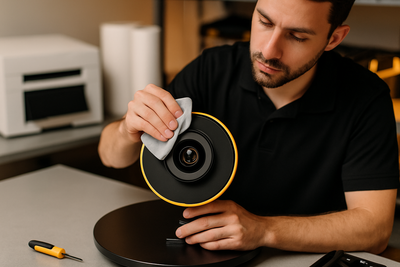
- Clean the lens with a microfiber cloth: dirt or fingerprints are the number one cause of blurry photos.
- Check the lighting at the shooting point; insufficient light forces the camera to compensate with more noise or less sharpness.
- Ensure that the focus isn’t manually locked at an incorrect point from a previous event.
Connection Failures: The Invisible Link
The photo booth freezes or has a delay between photo and print
When the camera, software, and printer communicate via cable or internal network, a connection failure usually manifests as slowness or intermittent freezes rather than a total blackout.
Unstable Wi-Fi or local network
If your system relies on a Wi-Fi connection (for example, to share galleries or upload photos), a home router overwhelmed by dozens of mobile devices connected at the same event can slow down the entire process. Bringing your own router or access point, independent of the venue's Wi-Fi, usually resolves this problem at its root.
Loose cables, the classic of any event
Before suspecting a serious failure, physically check each connection: USB, power, and any intermediate cables. A poorly inserted cable due to the hustle of setup is, by far, the most repeated cause of “ghost failures” that disappear just by reconnecting.
Software Failures: When the Problem Isn’t Hardware
The application closes or doesn’t respond
Restarting the application (and if that’s not enough, the entire device) resolves most occasional freezes. If you’re using an app like Snap360 to manage your photo booth, ensure you have the latest available update installed, as outdated versions are often the cause of incompatibilities with the device’s operating system.
Templates or overlays that don’t apply correctly
Check that the template file hasn’t become corrupted during upload, and that the format and resolution match what the software requires. Always keeping a backup copy of your templates makes it easier to reload them quickly if one fails on the day of the event.
Quick Diagnosis Summary Table
| Symptom | Probable Cause | First Action |
|---|---|---|
| Doesn’t print anything | Cable, paper, or ink improperly placed | Check connections and consumables |
| Lines or bands on the copy | Dirty print head or misaligned ribbon | Run the manufacturer’s cleaning cycle |
| Camera won’t turn on | Power supply or overheating | Check cable/battery and ventilation |
| System slow or freezes | Saturated network or outdated app | Own router and update software |
When to Seek Technical Help Instead of Continuing to Test
If after checking cables, consumables, and software the failure persists, stop forcing the equipment: continuing to try to restart or disassemble parts without technical knowledge can turn a repairable breakdown into greater damage. Note the exact symptom, the moment it started, and any error messages to facilitate diagnosis for technical support or the manufacturer.
Emergency Kit to Avoid Canceling Service
Always bringing basic spare parts to each event drastically reduces the risk of an unsolvable failure: a compatible ink cassette and spare photo paper, an additional USB cable, and an extra power cable, along with your own Wi-Fi router are the three things that most often save an ongoing event.
Conclusion: Quick Diagnosis is Also Part of the Service
A failure during an event doesn’t define the quality of your business; how you resolve it does. With a prior maintenance routine and this block diagnosis scheme, most incidents are resolved in minutes without guests even noticing. If your printer or paper are showing signs of wear that can no longer be fixed with cleaning, check our catalog of photo printers and compatible photo paper to always have it ready before the next event.